Setting Up Google Sheets Data Backup Integration
A comprehensive guide to configuring automated data backup from GoBuilderGo to Google Sheets for secure data synchronization and backup.
Setting Up Google Sheets Data Backup Integration
GoBuilderGo provides seamless integration with Google Sheets to automatically backup your critical business data. This guide will walk you through the complete setup process.
Prerequisites
Before you begin, ensure you have:
- Admin access to your GoBuilderGo organization
- A Google account with access to Google Sheets
- Google Cloud Console access for API configuration
Overview
The Google Sheets integration allows you to:
- Automatically sync inventory, bookings, and customer data
- Schedule backups at regular intervals
- Maintain data history for compliance and auditing
- Export reports in a familiar spreadsheet format
Step 1: Create a Google Cloud Project
-
Navigate to the Google Cloud Console
-
If prompted to enable 2-Step Verification (2FA):
Google Cloud may require you to enable 2-step verification for enhanced security. If you see the message "Google Cloud access blocked", follow these steps:
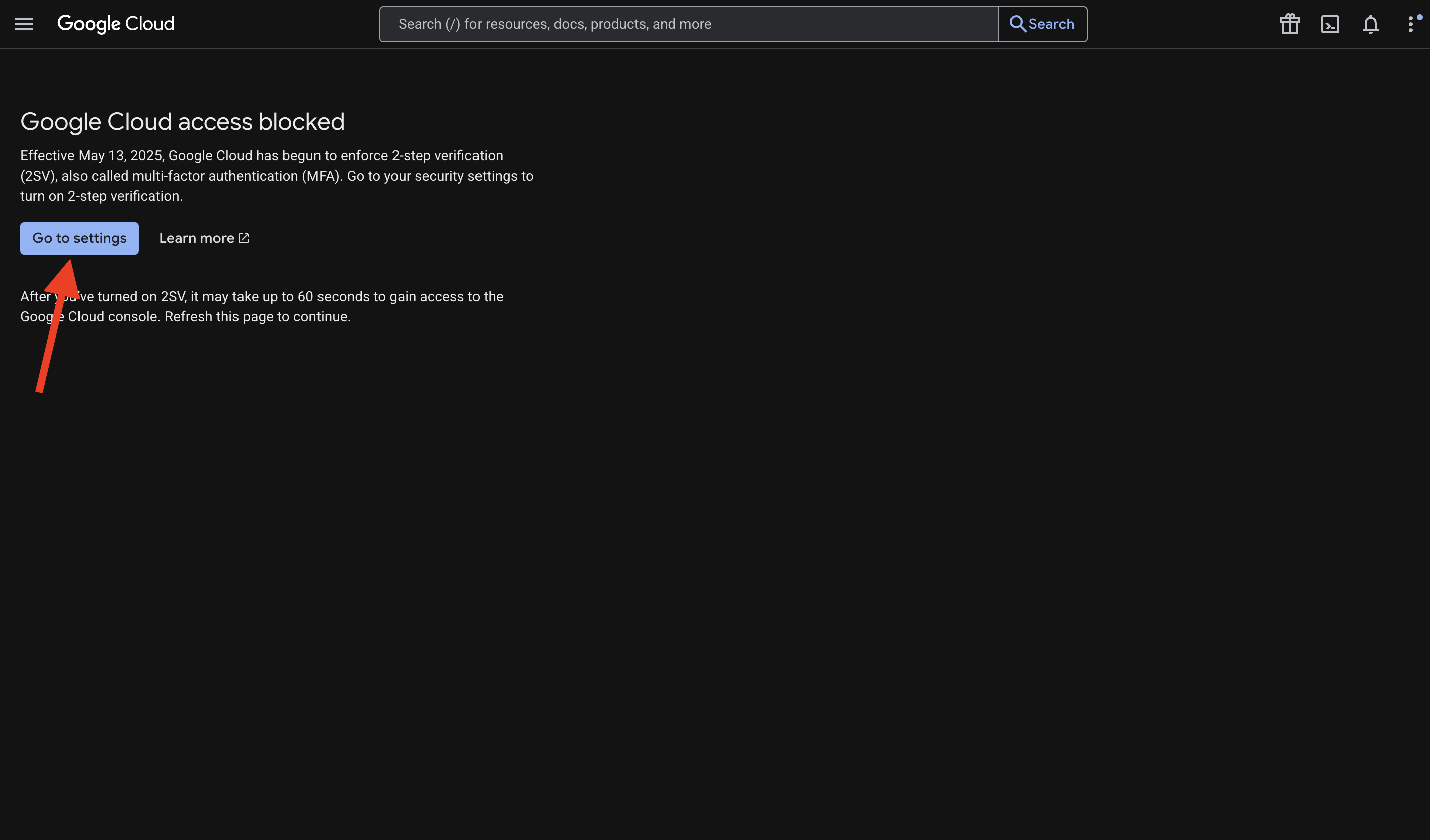
a. Click "Go to settings" button
b. You'll be redirected to your Google Account security settings
c. Under "Signing in to Google", click on "2-Step Verification"
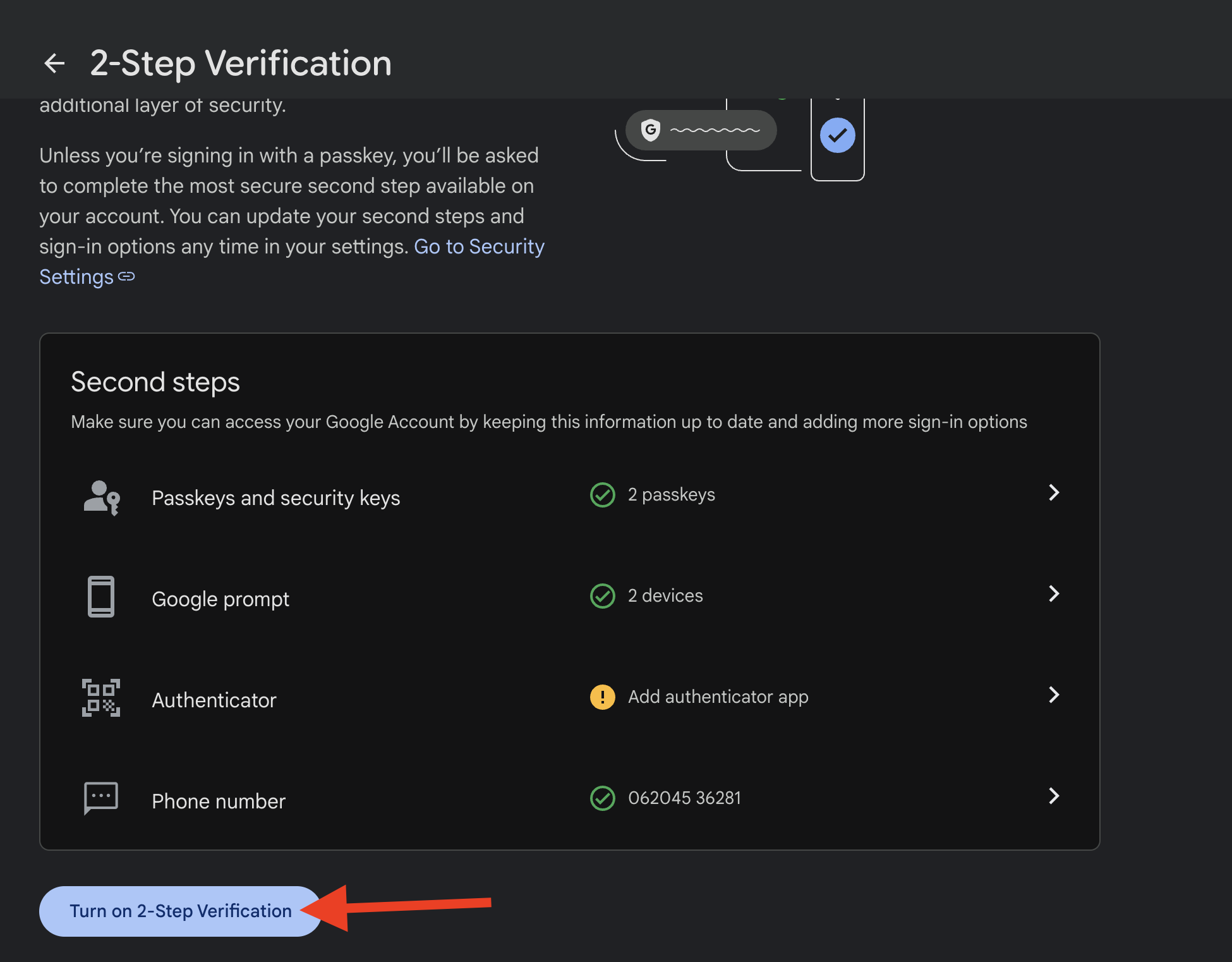
d. Click "Get Started"
e. Choose your preferred 2FA method:
- Authenticator App (Recommended): Use Google Authenticator, Microsoft Authenticator, or similar apps
- Phone Number: Receive codes via SMS or voice call
- Security Key: Use a physical security key (most secure)
f. Follow the on-screen prompts to complete the setup:
- If using Authenticator App: Scan the QR code with your authenticator app
- If using Phone Number: Enter your phone number and verify the code
- If using Security Key: Insert and tap your security key
g. Once 2FA is enabled, return to the Google Cloud Console
h. Wait up to 60 seconds and refresh the page to gain access
-
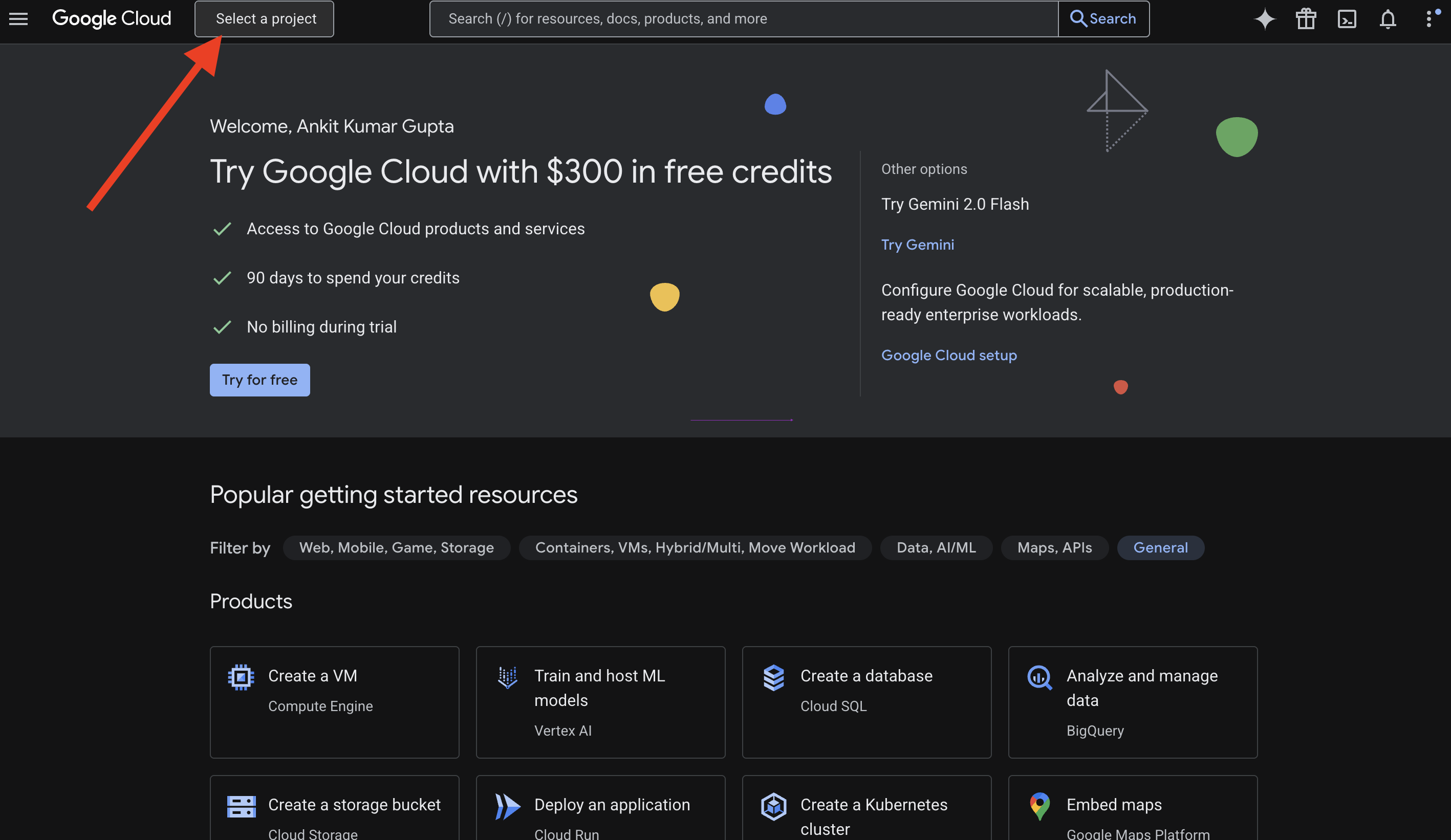
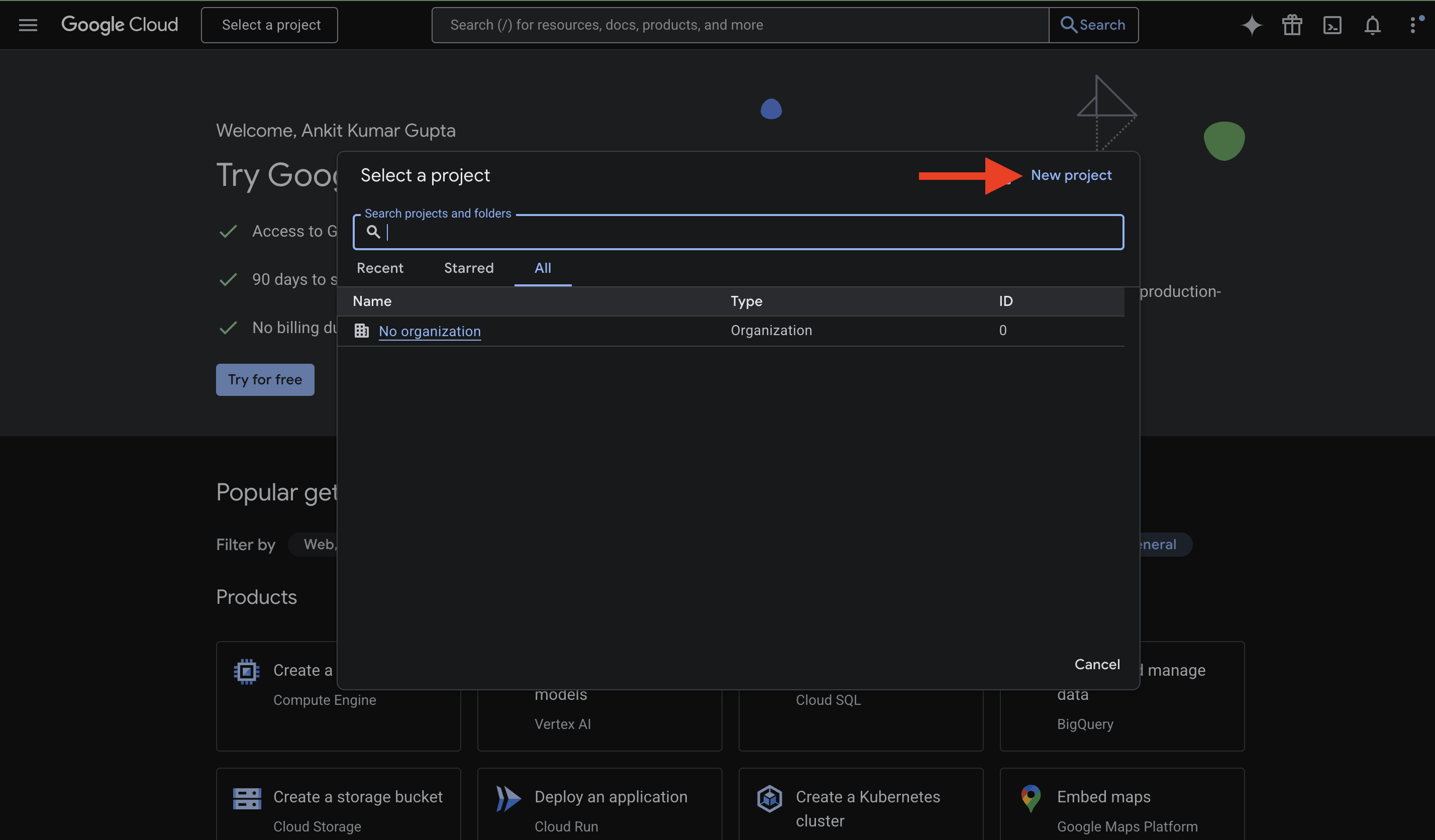
Click "Create Project" or select an existing project
-
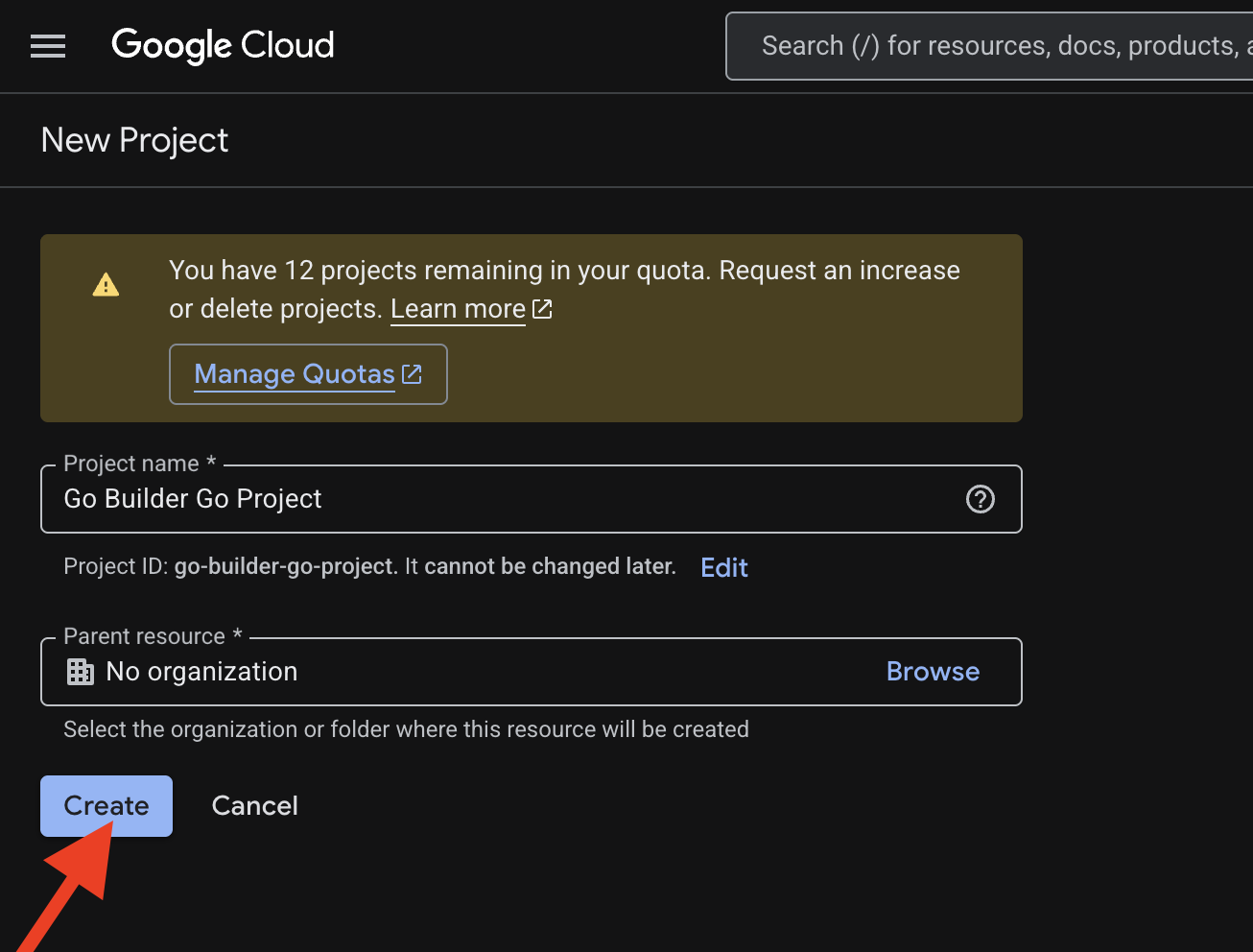
Give your project a meaningful name (e.g., "GoBuilderGo Data Backup")
-
Click "Create"
Step 2: Enable Required APIs
Enable the following APIs for your project:
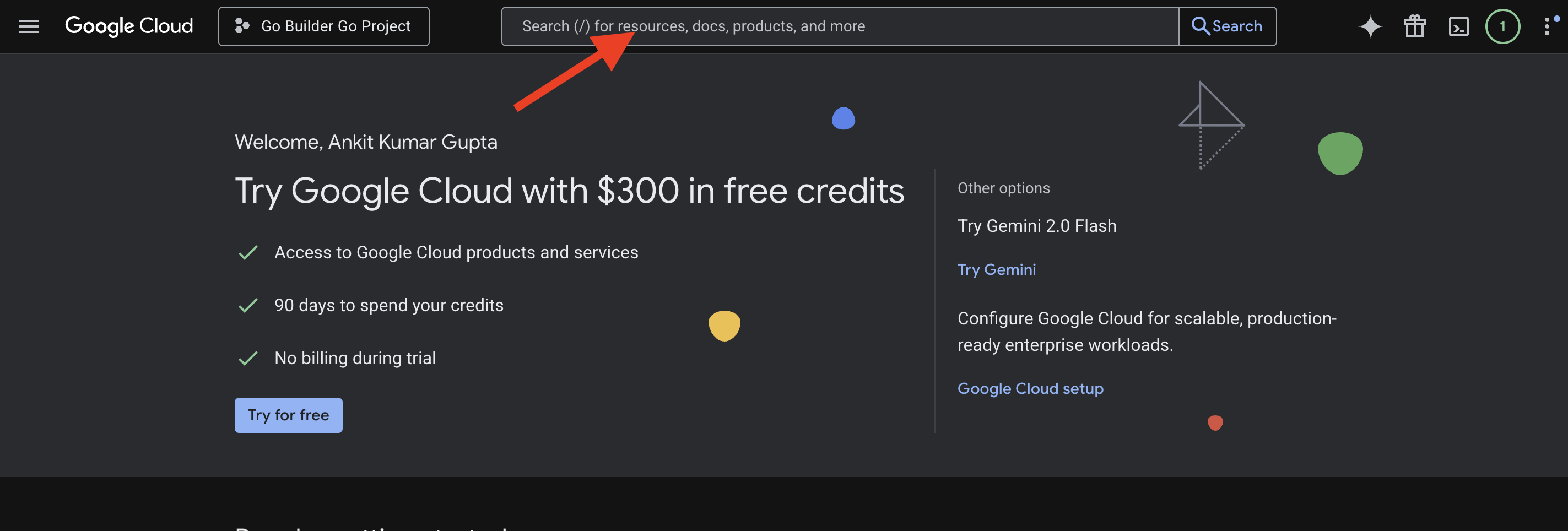
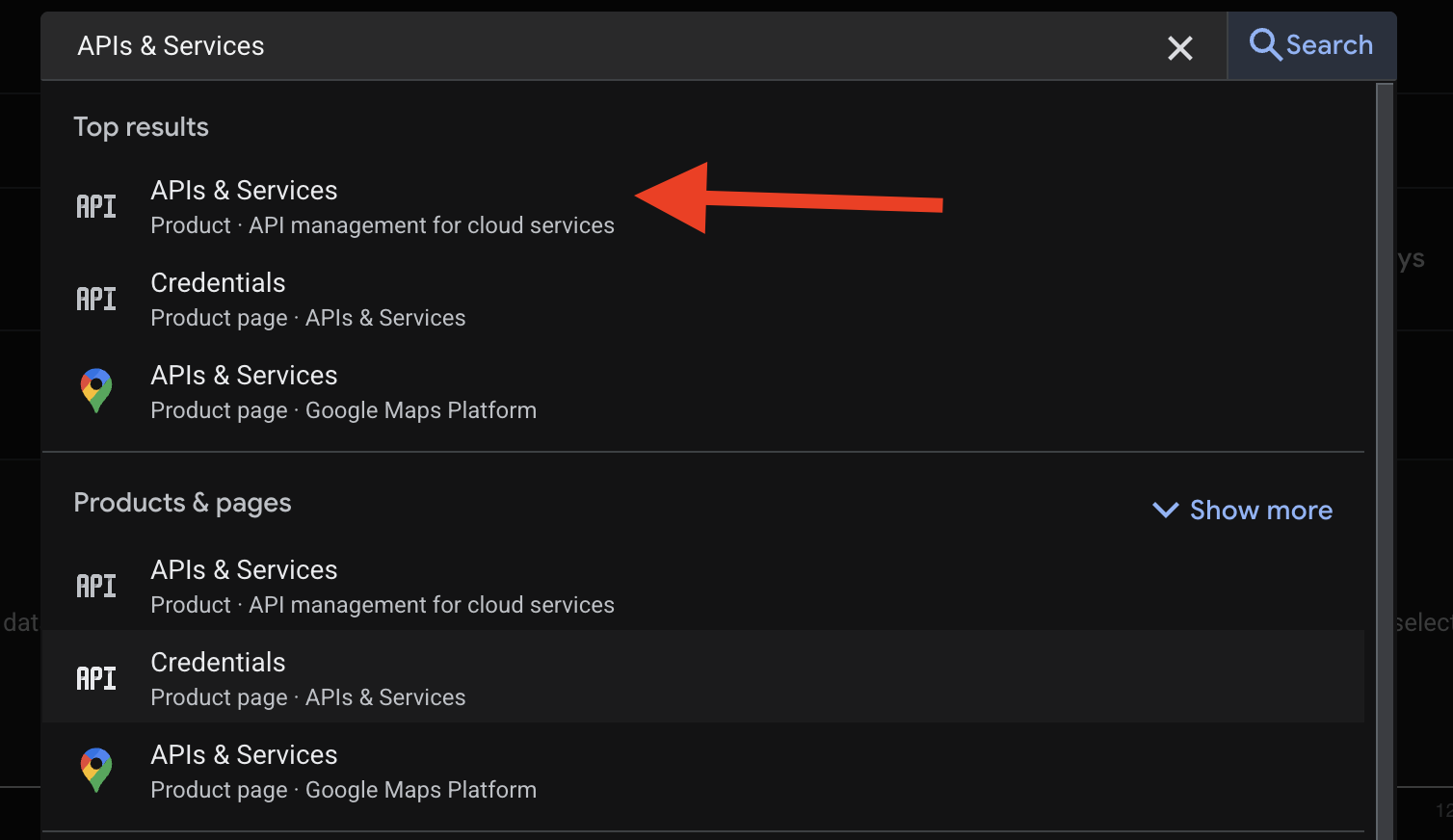
-
Go to "APIs & Services" > "Library"
-
Search for and enable:
- Google Sheets API
- Google Drive API
# You can also enable APIs using gcloud CLI
gcloud services enable sheets.googleapis.com
gcloud services enable drive.googleapis.com
Step 3: Create Service Account Credentials
- Navigate to "APIs & Services" > "Credentials"
- Click "Create Credentials" > "Service Account"
- Fill in the service account details:
- Name:
gobuildergo-sheets-backup - Description:
Service account for GoBuilderGo data backup to Google Sheets
- Name:
- Click "Create and Continue"
- Grant the service account the "Editor" role
- Click "Done"
Step 4: Generate and Download Service Account Key
- In the Credentials page, find your newly created service account
- Click on the service account email
- Go to the "Keys" tab
- Click "Add Key" > "Create new key"
- Select JSON format
- Click "Create"
- The JSON key file will be downloaded automatically
Example Service Account JSON Structure
{
  "type": "service_account",
  "project_id": "your-project-id",
  "private_key_id": "your-private-key-id",
  "private_key": "-----BEGIN PRIVATE KEY-----\n...\n-----END PRIVATE KEY-----\n",
  "client_email": "gobuildergo-sheets-backup@your-project.iam.gserviceaccount.com",
  "client_id": "123456789",
  "auth_uri": "https://accounts.google.com/o/oauth2/auth",
  "token_uri": "https://oauth2.googleapis.com/token",
  "auth_provider_x509_cert_url": "https://www.googleapis.com/oauth2/v1/certs"
}
⚠️ Important: Keep this file secure! It contains sensitive credentials.
Step 5: Create and Share Google Sheet
- Create a new Google Sheet or use an existing one
- Share the sheet with the service account email:
- Click "Share" in the top-right corner
- Paste the service account email (e.g.,
gobuildergo-sheets-backup@your-project.iam.gserviceaccount.com) - Grant "Editor" permissions
- Click "Send"
Step 6: Configure GoBuilderGo Integration
Access Data Backup Sync Settings
- Log in to your GoBuilderGo account
- Navigate to Project Setup > Project Settings > Data Backup Sync
- You'll see the "Google Sheets Configuration" page
Step 7: Configure Backup Settings in GoBuilderGo
Google Sheets Configuration
-
In the Data Backup Sync page, configure the following settings:
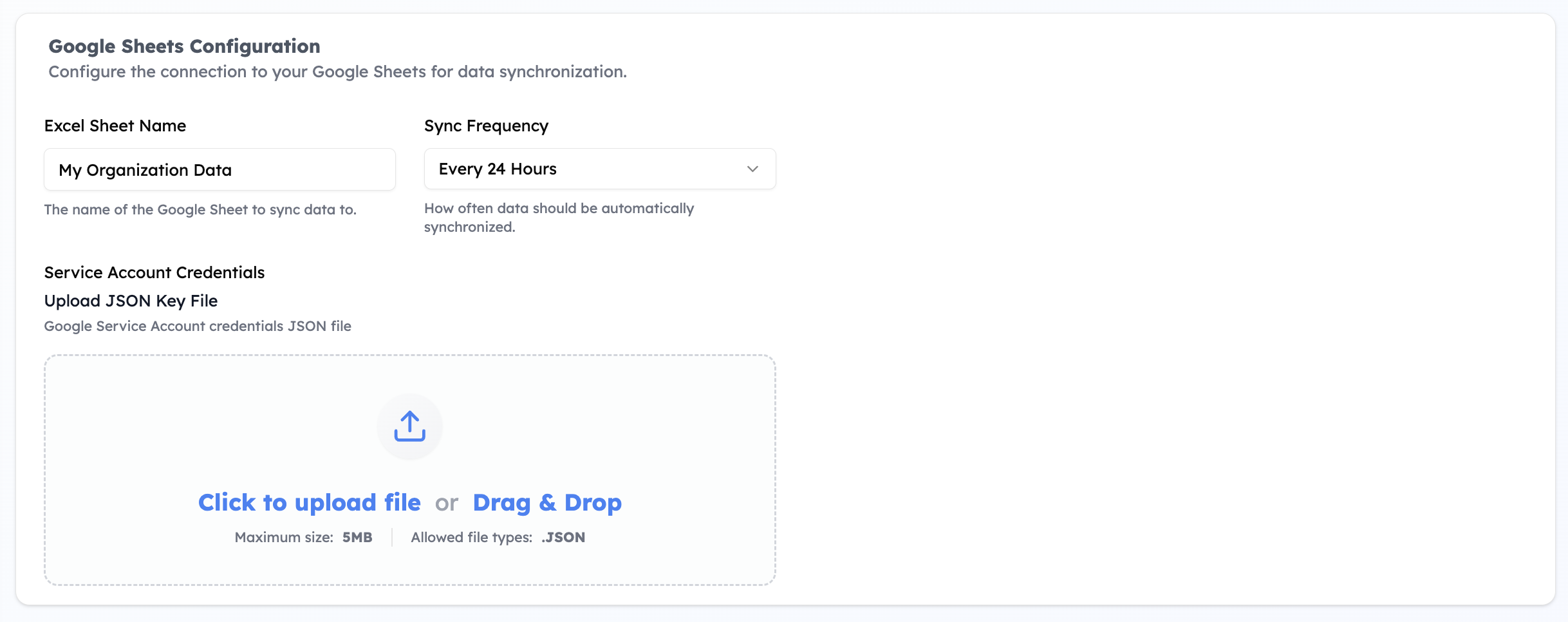
Excel Sheet Name:
- Enter a name for your Google Sheet (e.g., "My Organization Data")
- This is the name of the Google Sheet to sync data to
Sync Frequency:
- Select how often data should be automatically synchronized:
- Every 24 Hours (recommended)
- Custom intervals as needed
Service Account Credentials:
- Click "Click to upload file" or "Drag & Drop"
- Upload the JSON key file you downloaded in Step 4
- Maximum size: 5MB
- Allowed file type: .JSON
Module Synchronization
-
Select which data modules and documents you want to synchronize:
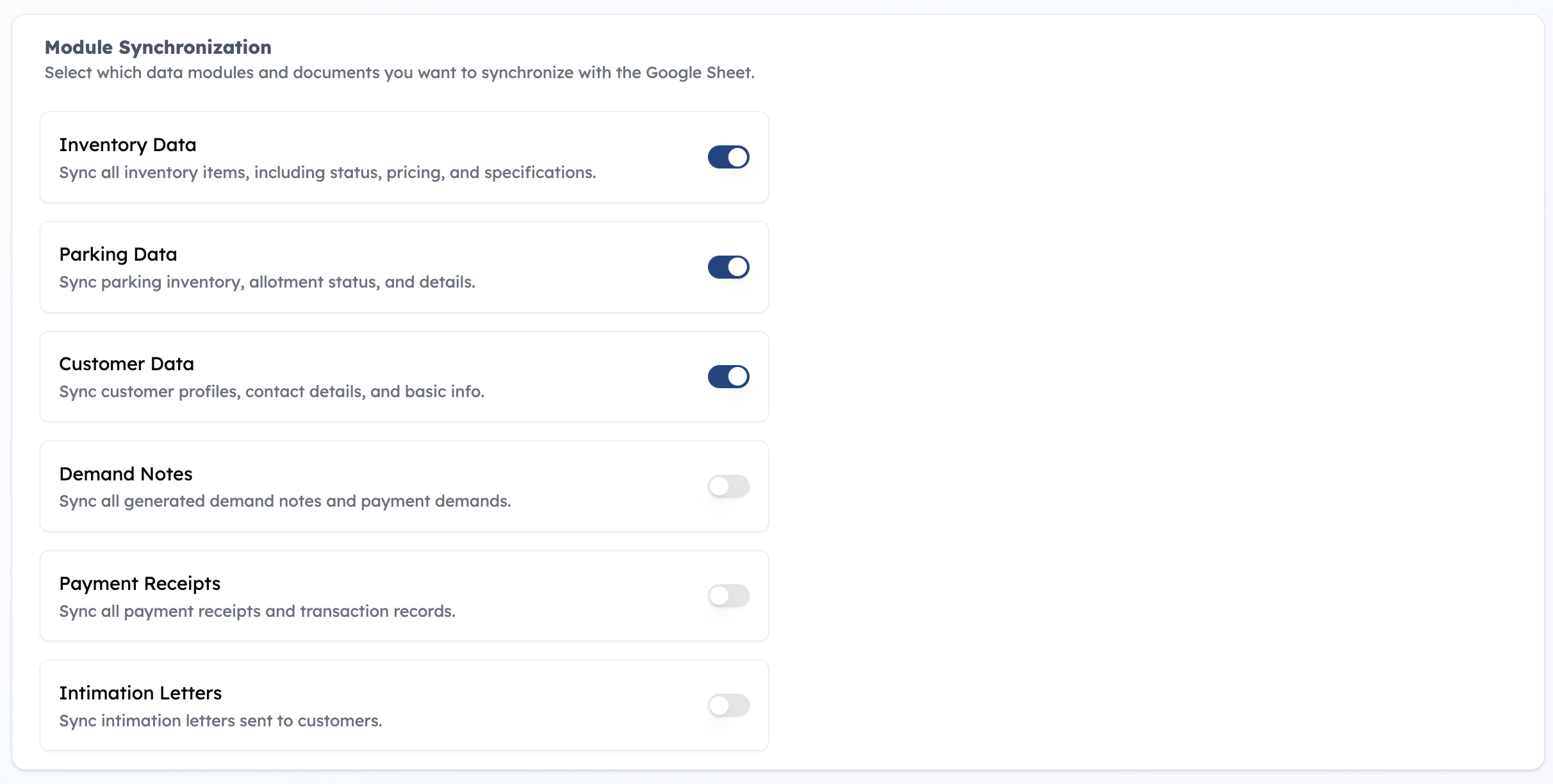
- Inventory Data - Sync all inventory items, including status, pricing, and specifications
- Parking Data - Sync parking inventory, allotment status, and details
- Customer Data - Sync customer profiles, contact details, and basic info
- Demand Notes - Sync all generated demand notes and payment demands
- Payment Receipts - Sync all payment receipts and transaction records
- Intimation Letters - Sync intimation letters sent to customers
-
Click "Save Configuration" to apply your settings
Congratulations! 🎉
You've successfully set up automated data backup from GoBuilderGo to Google Sheets! Your data will now be automatically synced according to your configured schedule, providing you with a reliable backup and easy access to your business data in a familiar spreadsheet format.
Verify Sync Status
After configuring the integration, you can verify the status of your data synchronization.
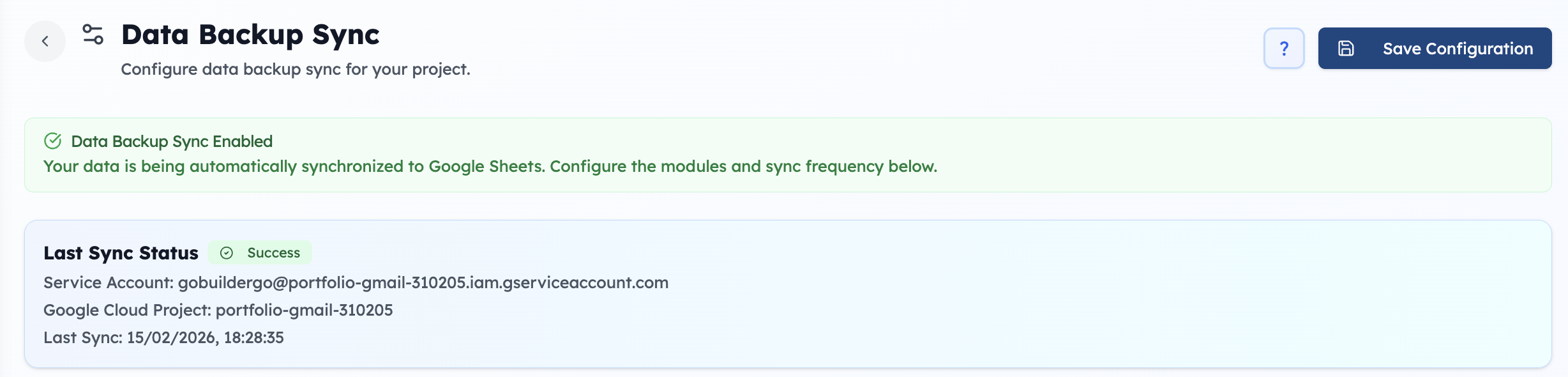
The status indicator shows:
- Last Synced: The timestamp of the most recent successful sync
- Status: Current state (e.g., PENDING, IN ##PROGRESS, SUCCESS, FAILED)
Troubleshooting
Common Issues and Solutions
| Error | Solution |
|---|---|
| Permission Denied | Ensure the Google Sheet is shared with the service account email with Editor permissions. |
| API Not Enabled | Verify that both Google Sheets API and Google Drive API are enabled in your Google Cloud project. |
| Invalid Credentials | Re-download the service account JSON key. Ensure the JSON file is not corrupted. Verify the service account has the correct permissions. |
| Sheet Not Found | Double-check the Sheet ID in the configuration matches the actual Google Sheet URL. |
Last Updated: February 15, 2026
Version: 1.0